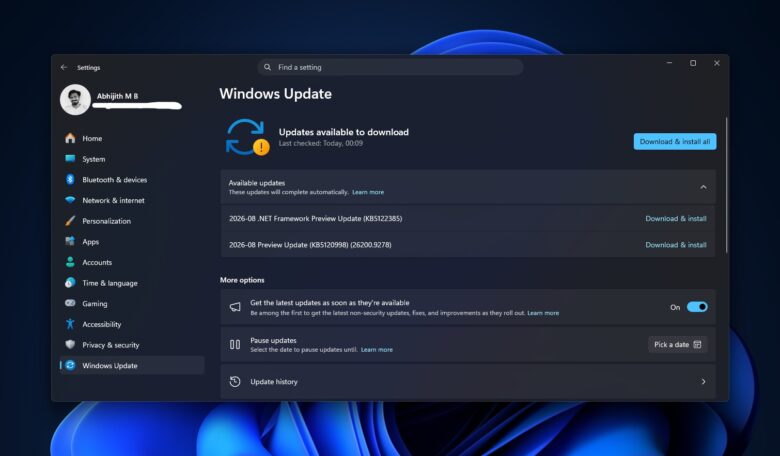
The Windows 11 26H2 update is now rolling out as an optional package through Windows Update under build KB5120998. Because Microsoft deploys features via phased rollouts, several newly added capabilities remain inactive by default. Users can manually unlock these tools, though early reports indicate occasional mouse cursor and wallpaper bugs that may require uninstalling the update if encountered.
A major performance addition is the Low Latency Profile. This optimization mode accelerates application launch times by briefly spiking CPU clock frequencies. Users can verify if the feature is running by monitoring the Task Manager while opening heavy software. If processor frequencies do not boost dynamically, the profile can be enabled using third-party configuration tools like ViVeTool.

KB5120998 Update is already available. Image: Windows Latest
To activate the performance boost via ViVeTool:
- Download and extract the ViVeTool archive into a dedicated folder.
- Launch Command Prompt (CMD) with administrator privileges.
- Navigate to the tool’s folder path using standard console navigation commands.
- Execute the command: vivetool /enable /id:58989092
- Restart your computer to apply the updated latency profile.
The update also introduces options to disable integrated Bing web search and Copilot integration directly inside the Start Menu. Removing cloud-based queries significantly speeds up local system indexing and prevents irrelevant web links from launching in Microsoft Edge. Users can configure this under Settings > Privacy & Security > Search by toggling off options for Web Searches and Microsoft Store.

Image: Windows Latest
If these toggles are missing from the settings interface, they can be forced active through the elevated command line using:
vivetool /enable /id:61161244,61754985,62353331,62762248
Then, finish it up followed by a complete system reboot.
Additionally, this update introduces enhanced customization options for desktop environments. Users gain the ability to adjust the physical footprint and overall size of the Start Menu, alongside new layout preferences in Settings > Personalization that support repositioning the Taskbar along different display edges.
Windows 11 26H2: How To Turn Off Bing Search And Speed Up App Launching
, original content from Ubergizmo. Read our Copyrights and terms of use.